What are Community Pins?
When an individual belongs to several Communities, every Community appears in the program homepage in alphabetical order. If an individual needs quick access to a Community they frequently visit or wants to pay closer attention to a specific Community, they can use Community pins to keep one or a few Communities at the top of their list.
Note: Community members can pin Communities for themselves, or Community Leads can pin Communities for members.
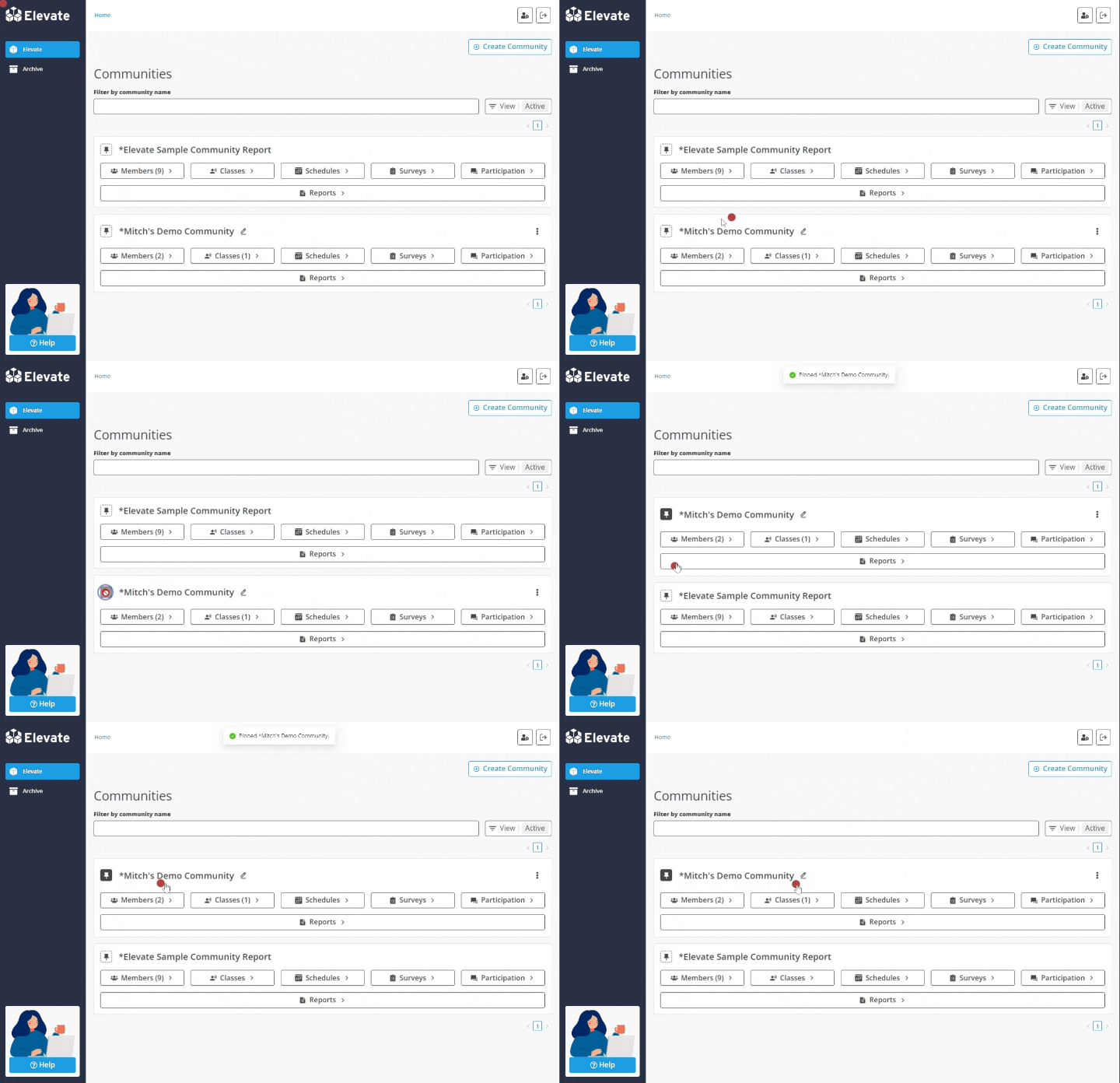
A. How do I pin/unpin a Community for myself?
- View your list of Communities
- Click the pin icon next to the Community you’d like to pin/unpin
- Pinned communities will appear at the top of your list
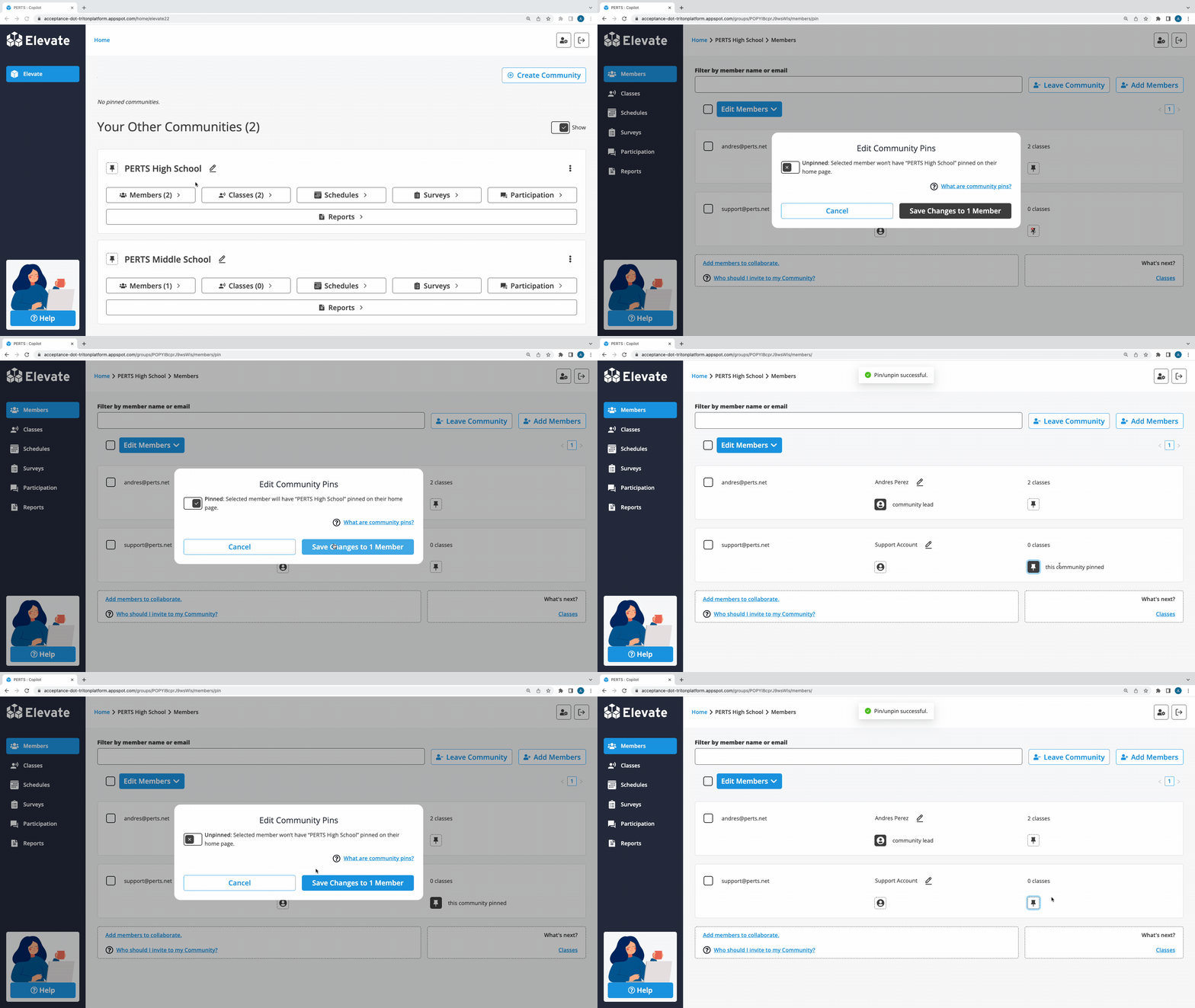
B. How does a Community Lead pin/unpin a Community for one member?
- From the list of Communities, locate the Community you want to pin/unpin for others and click Members
- Locate the member for whom you want to pin/unpin a Community
- Click the pin icon on their member card
- To pin the Community, toggle the pin button from an X to ✓
- To unpin the Community, toggle the pin button from an ✓ to X
- Click Save Changes to 1 Member
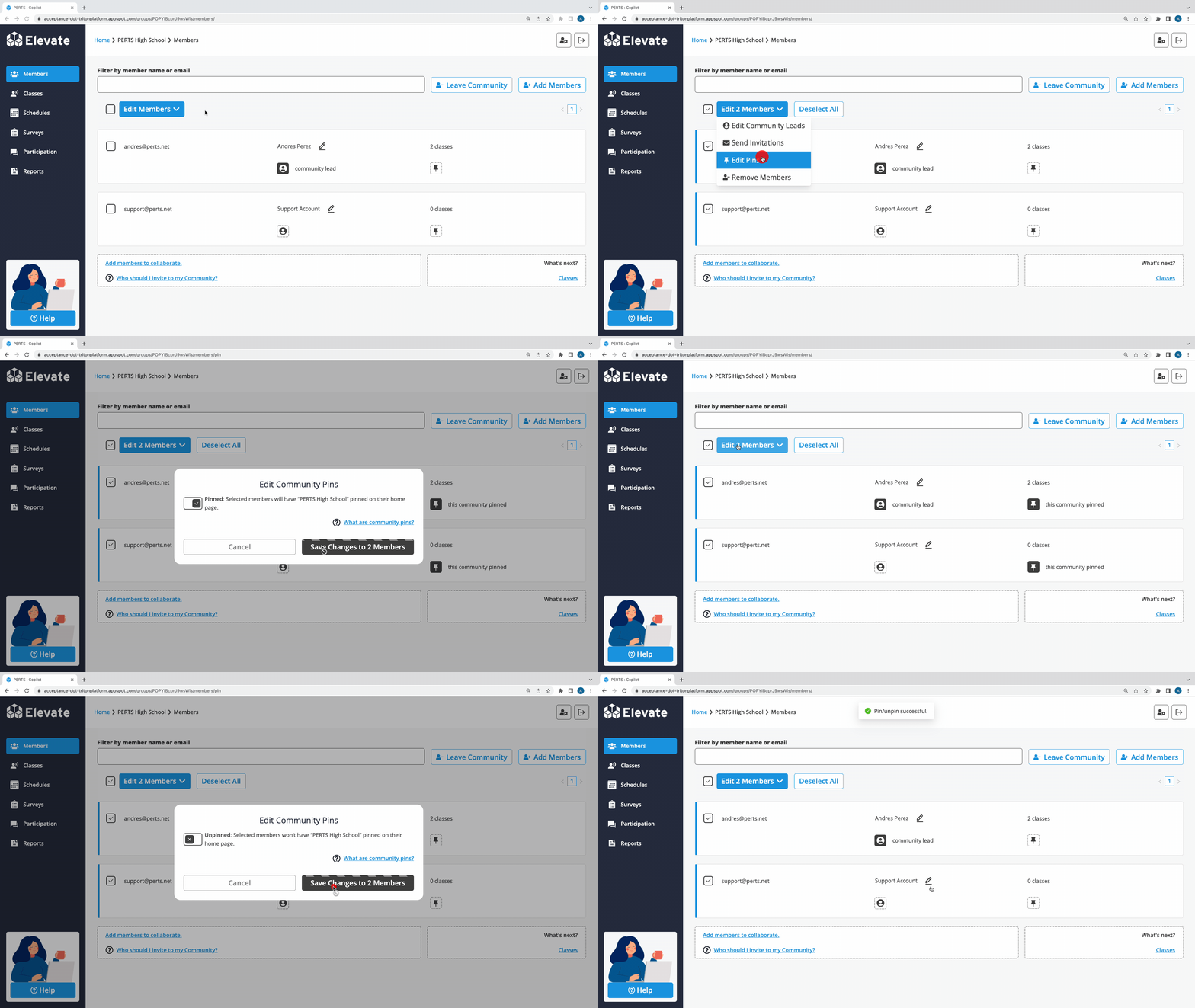
C. How does a Community Lead pin/unpin a Community for several members?
- From the list of Communities, locate the Community you want to pin/unpin for others and click Members
- Select the members for whom you want to pin/unpin a Community by clicking the box next to each name or select all by clicking the box above the list
- Click Edit # Members
- Click Edit Pins
- To pin the Community, toggle the pin button from an X to ✓
- To unpin the Community, toggle the pin button from an ✓ to X
- Click Save Changes to # Members