What is a Sign-On Rule?
A Sign-On Rule reduces the likelihood of roster and sign-on errors and helps to protect data integrity. It does this by dictating the format of acceptable participant identifiers and providing a precise sign-on prompt for participants. For example, suppose a school uses the email domain, perts.net. The Sign-On Rule could indicate that all identifiers must end with @perts.net and the sign-on prompt would read, “Enter your email address ending with @perts.net.” If a participant entered, “abc@perts,” they would not be able to access the survey.
A Sign-On Rule is especially recommended when a Roster is unlocked and can be applied to an individual Class/Group or in bulk for an entire Community.
Note: The Ruler icon in the Class/Group Card will appear with a dark background when enabled and white background when disabled.
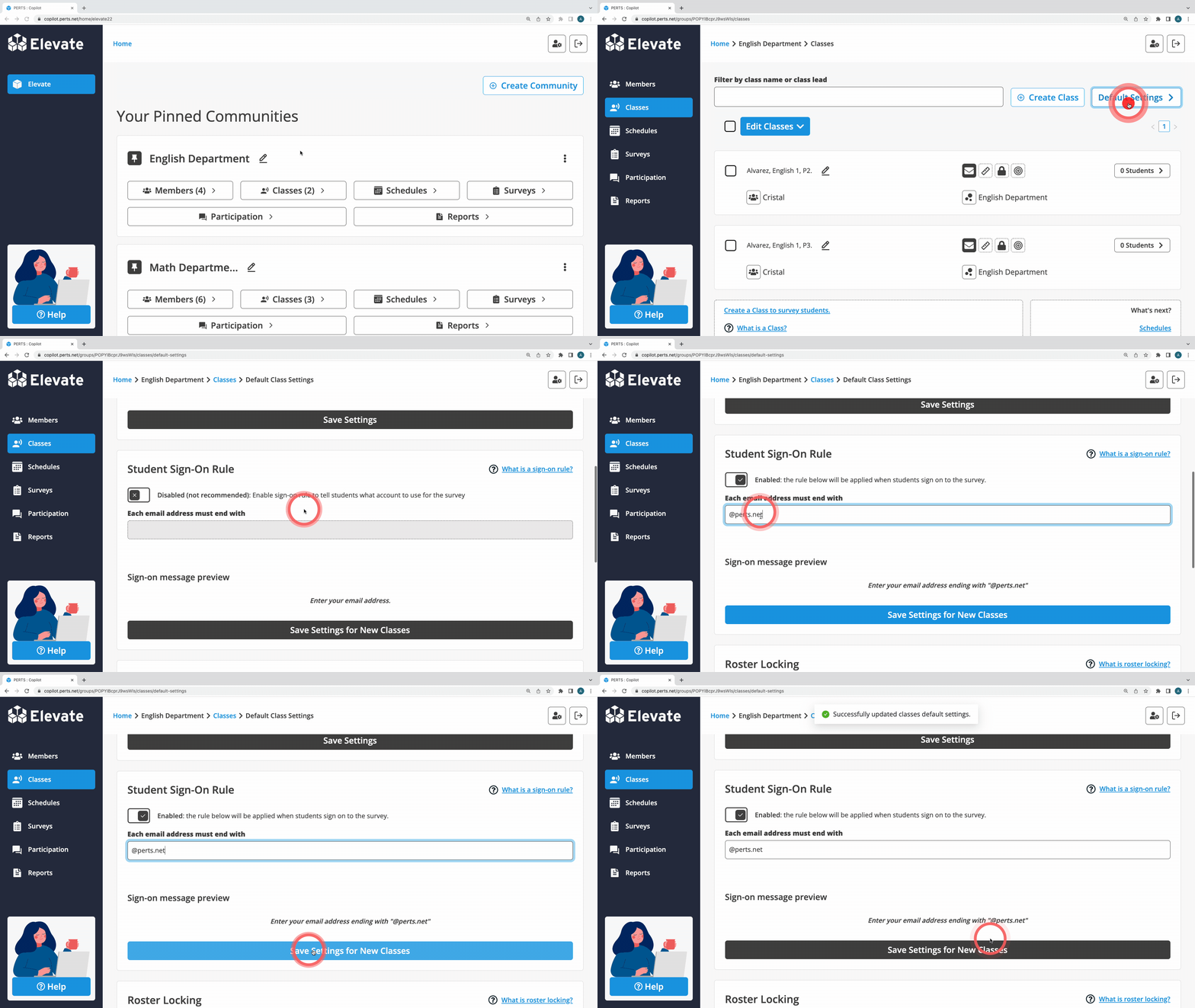
A. How do I enable/disable the Sign-On Rule for one Class/Group?
- Sign in
- From the Classes/Groups tab, identify the Class/Group you would like to edit
- Click the Ruler icon in the Class/Group Card
- To enable the Sign-On Rule, toggle the button from X to ✓. You will then be prompted to add the rule.
- To disable the Roster ID Rule, toggle the button from ✓ to X.
- Click Save Changes to 1 Class/Group
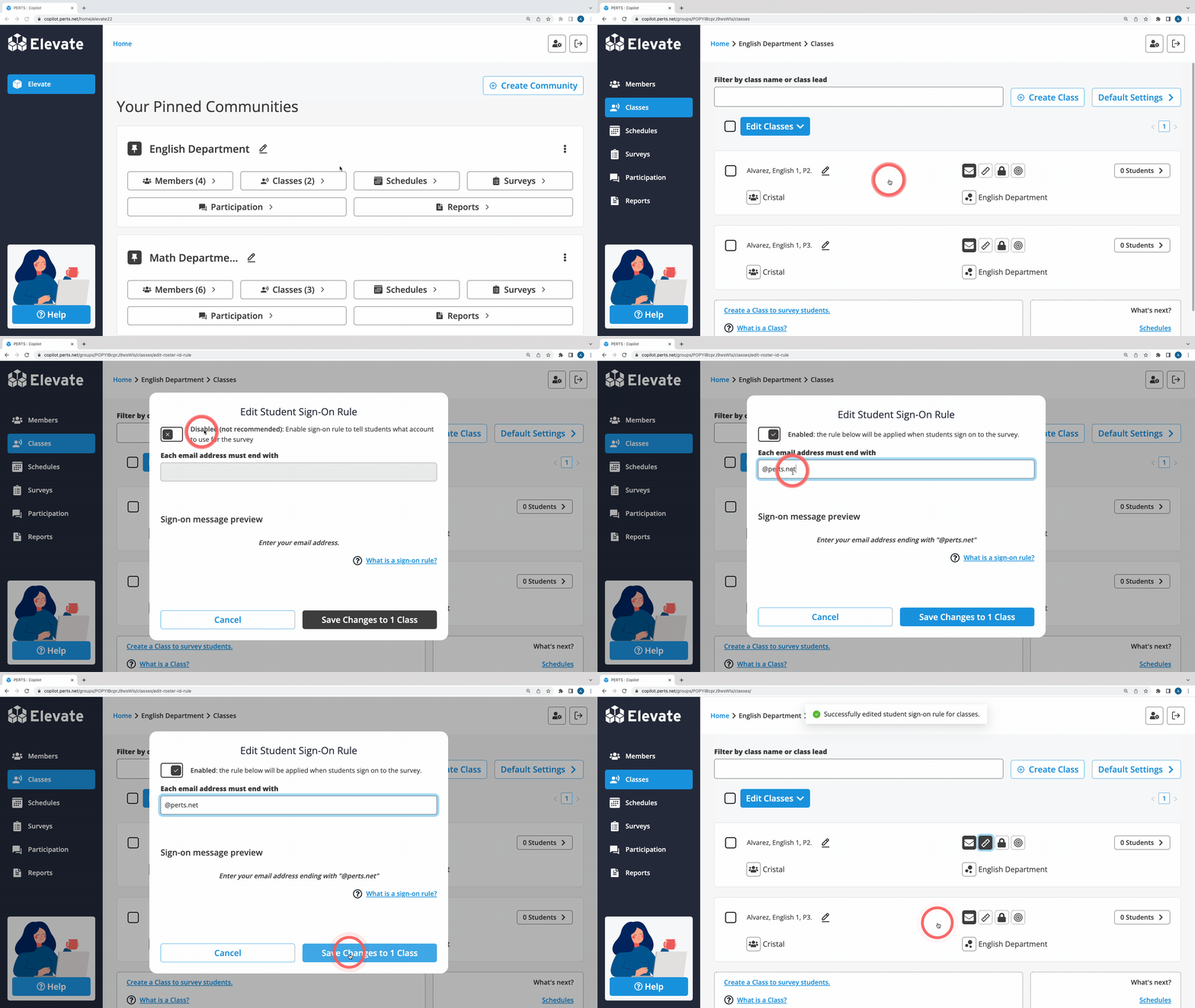
B. How do I enable/disable the Sign-On Rule for several Classes/Groups?
- Sign in
- From the Classes/Groups tab, select the Classes/Groups you would like to edit by clicking the box next to each name or select all by clicking the box above the list
- Click Edit # Classes/Groups
- Click Edit Sign-On Rule
- To enable the Sign-On Rule, toggle the button from X to ✓. You will then be prompted to add the rule.
- To disable the Roster ID Rule, toggle the button from ✓ to X.
- Click Save Changes to # Classes/Groups
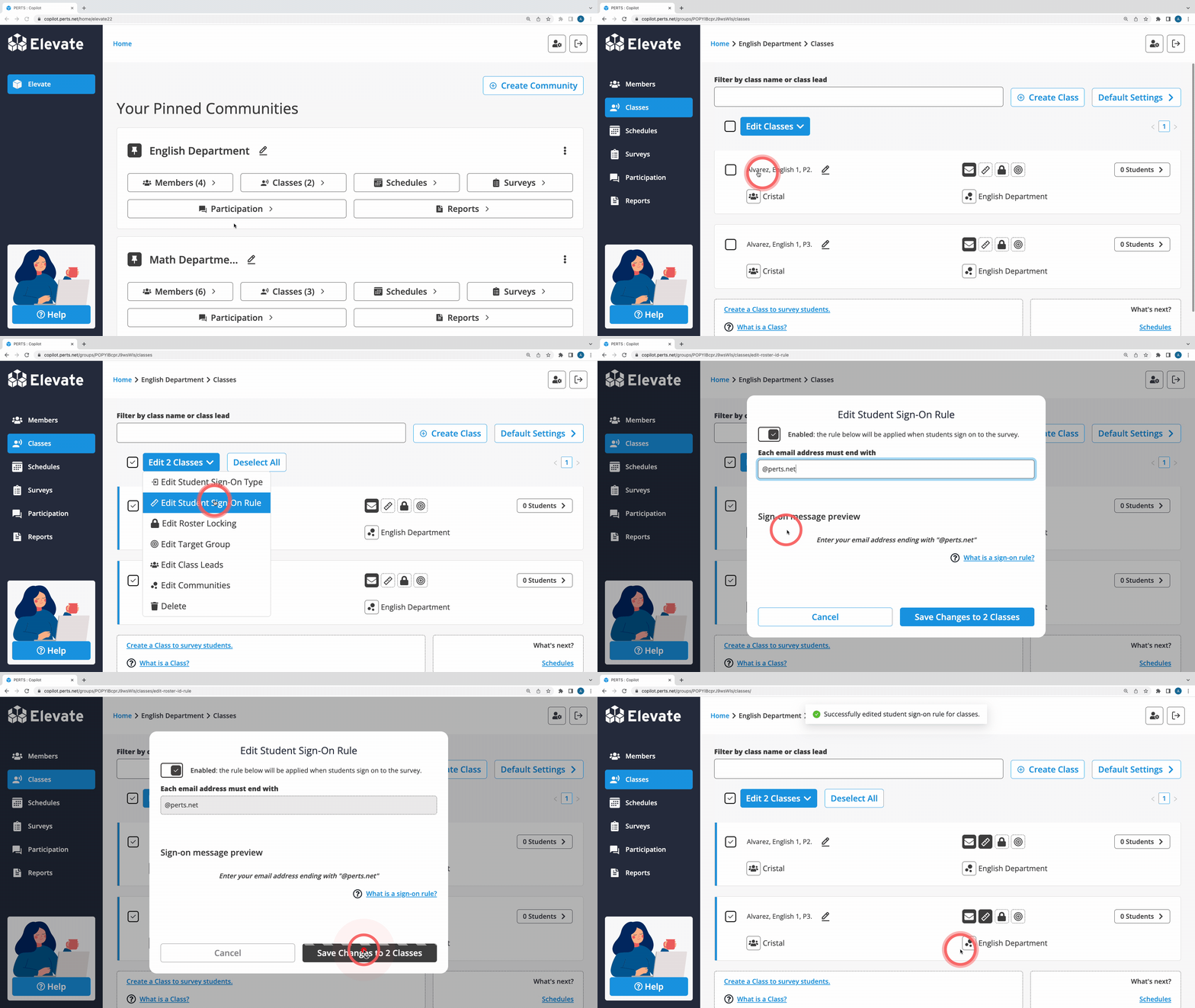
C. How do I set a Default Sign-On Rule for new Classes/Groups in a Community?
- From the Classes/Groups tab, click Default Settings
- Scroll to Sign-On Rule
- To enable the Sign-On Rule, toggle the button from X to ✓. You will then be prompted to add the rule.
- To disable the Roster ID Rule, toggle the button from ✓ to X.
- Click Save Settings for New Classes/Groups
Note: When a Default is set and the sign-on rule is changed for a Class/Group, an alert will appear along with an option to instead match the Community’s Default.