
How to use the Community Participation Dashboard
The Participation Dashboard is updated every night, unlike Reports which are updated weekly.
The Participation Dashboard enables tracking survey participation on the level of student/participant, Class/Group Lead, Class/Group, and Community. If data is not populated in your dashboard or it’s different than you expect, ensure the correct Classes/Groups are in the Community you’re viewing and you’ve allowed enough time (overnight) for the data to reflect any recent changes.
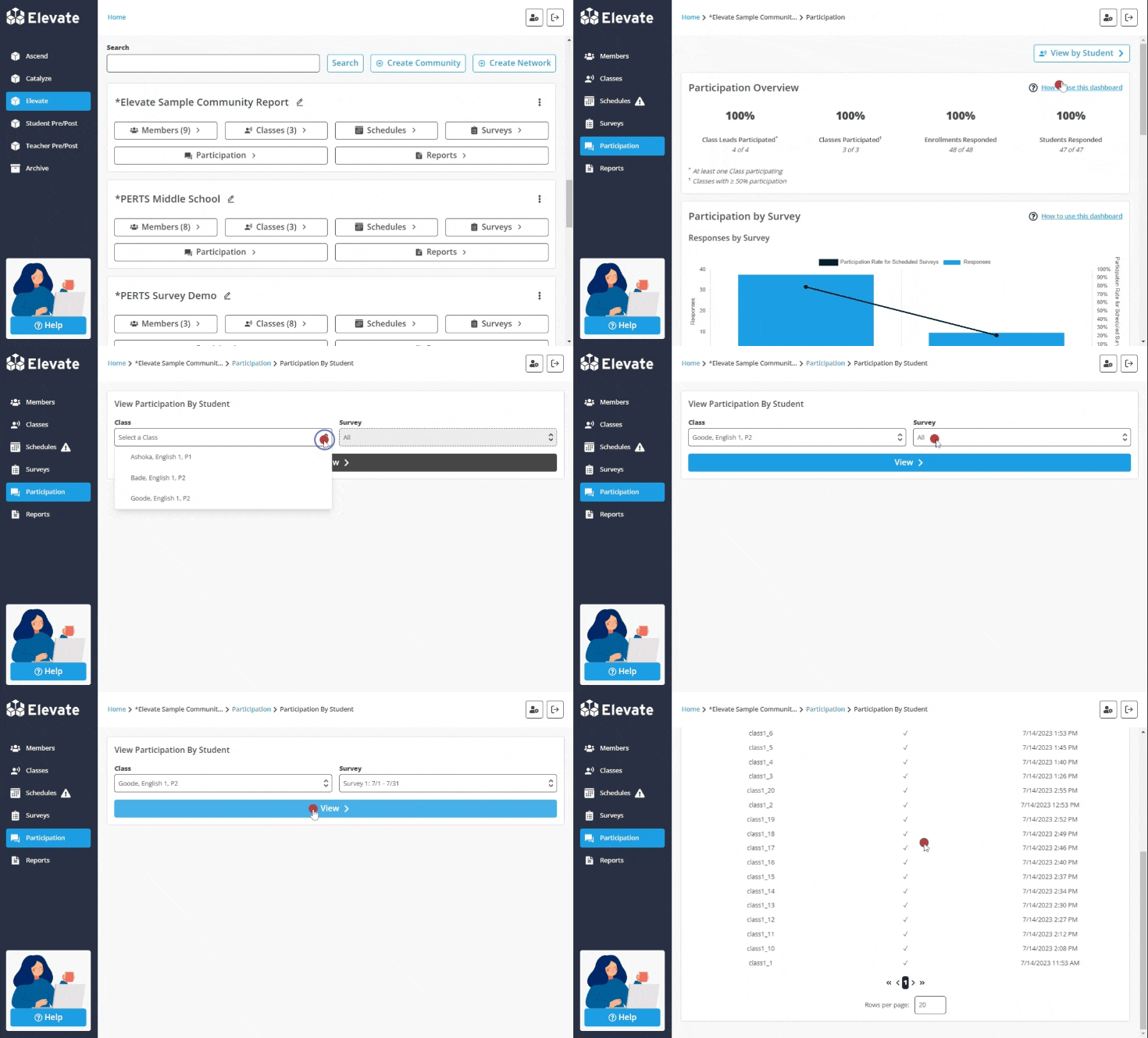
A. View by Student/Participant
The button at the top, right side of the page offers a detailed view into participation by student/participant. Click the button and follow the prompts to learn who has completed the survey and who might need a nudge.
B. Participation Overview
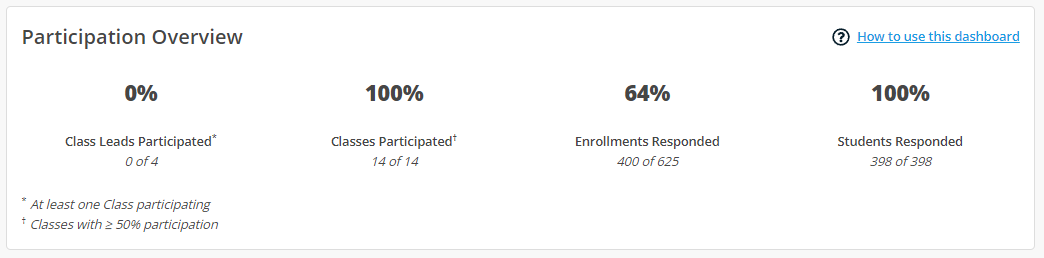
- Class/Group Leads: the total number of unique Class/Group Leads in the Community
- Class/Group Leads Participated: the percent of Class/Group Leads that have surveyed at least 50% of participants in at least one Class/Group
- Classes/Groups: the total number of Classes/Groups in the Community
- Classes/Groups Participated: the percent of Classes/Groups that have at least 50% participation
- Enrollments: the number of roster entries that appear across all Classes/Groups in the Community. For example, if a student’s email address appears on two Class Rosters, they account for two enrollments.
- Enrollments Responded: the percent of enrollments that responded to at least one survey
- Students/Participants: the total number of unique identifiers listed across all Classes/Groups in the Community. For example, if a student’s email address appears on two Class Rosters, they still account for only one student.
- Students/Participants Responded: the percent of students/participants that have responded to at least one survey.
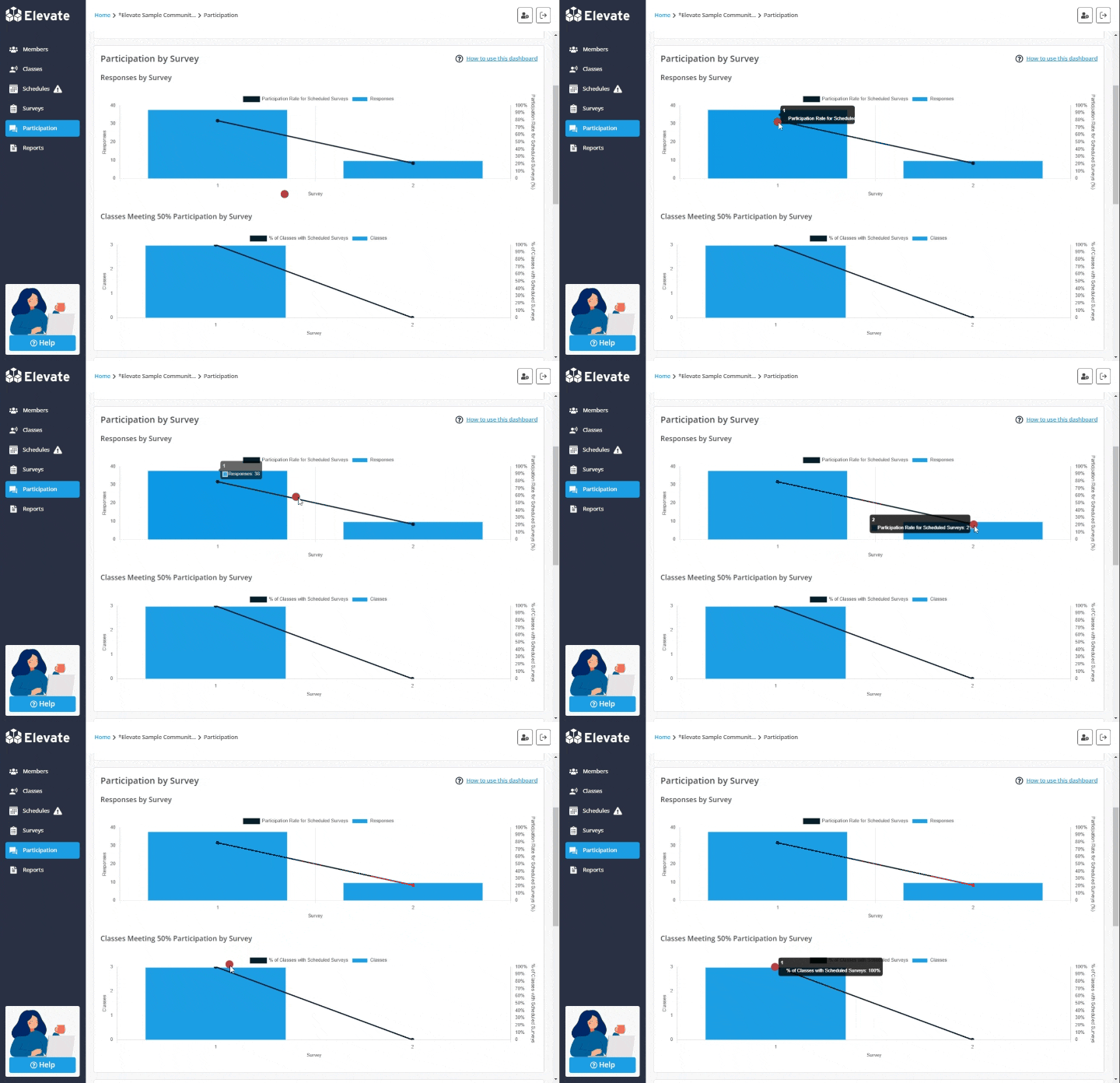
C. Participation by Survey
Hover over the lines and bars to see precise numbers.
- Responses: the number of times each survey was submitted
- Participation Rate for Scheduled Surveys: the percent of enrollments that responded to a survey. Note: the denominator only includes Enrollments for scheduled surveys. If a survey isn’t scheduled for a Class/Group, it does not count toward the denominator in this calculation.
- # of Classes/Groups Meeting 50% Participation: the number of Classes/Groups that have at least 50% participation
- % of Classes/Groups with Scheduled Surveys Meeting 50% Participation: the percent of Classes/Groups that have at least 50% participation. Note: the denominator only includes Classes/Groups with scheduled surveys. If a survey isn’t scheduled for a Class/Group, it does not count in this calculation.
D. Participation by Class/Group Lead
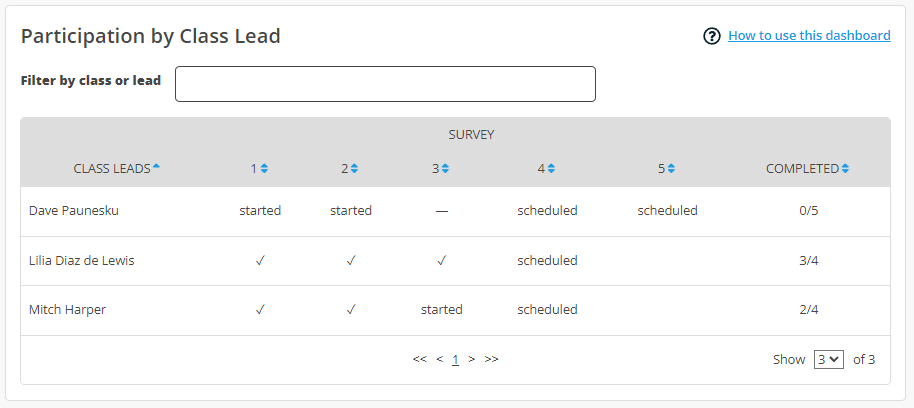
This table is only visible for Community and Network Leads and shows a status for each survey for each Class/Group Lead. Statuses include:
- ✓: the Lead has reached at least 50% participation in at least one Class/Group
- started: survey responses have been submitted in at least one Class/Group, but the Lead has not reached 50% in any Class/Group
- — (a dash): no survey responses have been submitted and the survey window is currently taking place or has passed
- scheduled: surveys are scheduled to begin some date in the future
- blank: a survey is not scheduled for that survey window
The “Completed” column indicates the number of surveys that have at least 50% participation for one Class/Group over the total number of surveys that are scheduled. The filter can be used to narrow down the list of Class/Group Leads by first or last name and the table can also be sorted by any column.
E. Participation by Class/Group
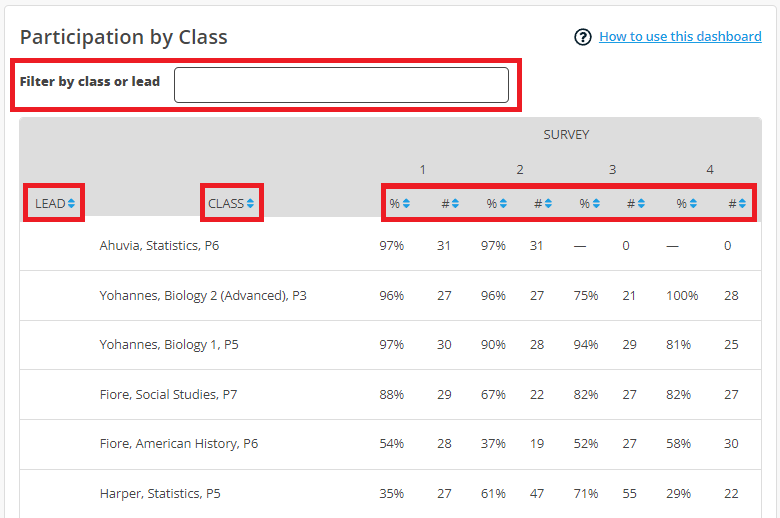
This table shows:
- % Participation Rate: the percent of participants on the Roster who completed that survey
- # of Responses: the number of survey responses for each Class/Group
The filter can be used to narrow down the list of Classes/Groups by Class/Group name or by Lead first or last name. The table can also be sorted by any column.
While this table is visible for all Community Members, Class/Group Leads will only see participation data for Classes/Groups which they lead. Community and Network Leads can view all participation data.