How do I create or edit a survey schedule?
Ascend, Catalyze, and Elevate are designed to support iterative processes that consist of multiple cycles of inquiry and action. A survey schedule, indicating the dates participants will complete the survey each cycle, must be set so that survey responses can be displayed correctly in reports. PERTS recommends scheduling 1-2 full weeks for participants to complete the survey each cycle.
A. How often should participants complete the survey?
PERTS recommends surveying participants at least 4 times over the school year (or 3 times for semester-long classes), but individuals can determine their own survey schedule. PERTS recommends weighing the following:
- Time needed to ensure at least 80% of students/participants complete the survey. Typically, we recommend 1-2 full weeks to allow for make-ups.
- Reports are generated every Monday by 10am Pacific Time (PT) / 1pm Eastern (ET).They include survey responses collected through 3pm PT on Sunday.
- If instructors or education leaders are expected to convene or collaborate to review their reports, coordinate survey dates to maximize collaborative time.
- Participants/Students must be able to experience new practices over several touch points. For example, if students only see a particular instructor twice per week, consider allowing more time between surveys.
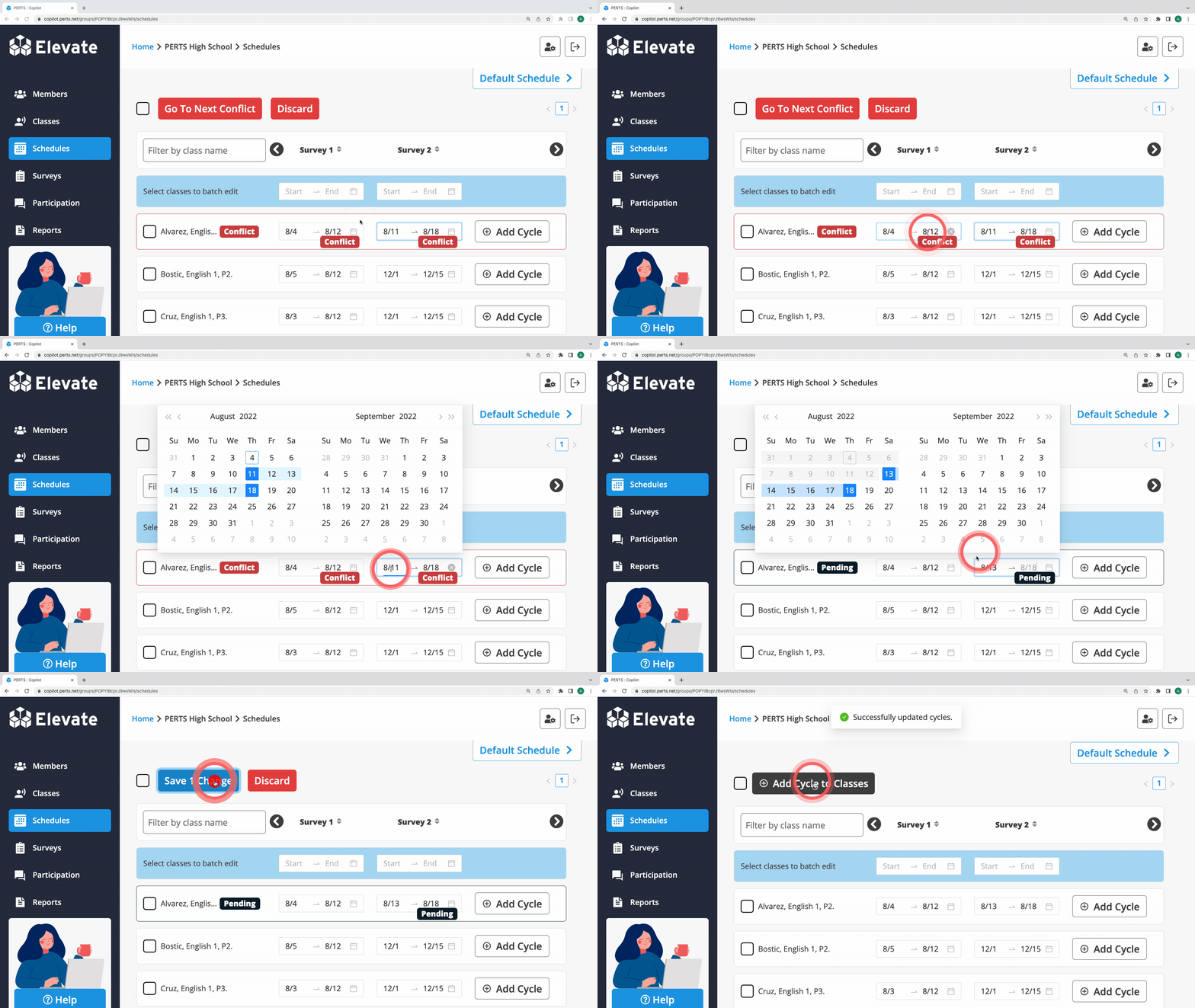
B. How do I set or adjust a survey schedule for one Class/Group?
- Sign in
- Click Schedules in the Community you would like to work with
- Locate the Class/Group you want to edit
- Click the Start - End date field to select the dates the survey will be administered. You can also click the X next to the dates to delete them.
- Click Save # Changes
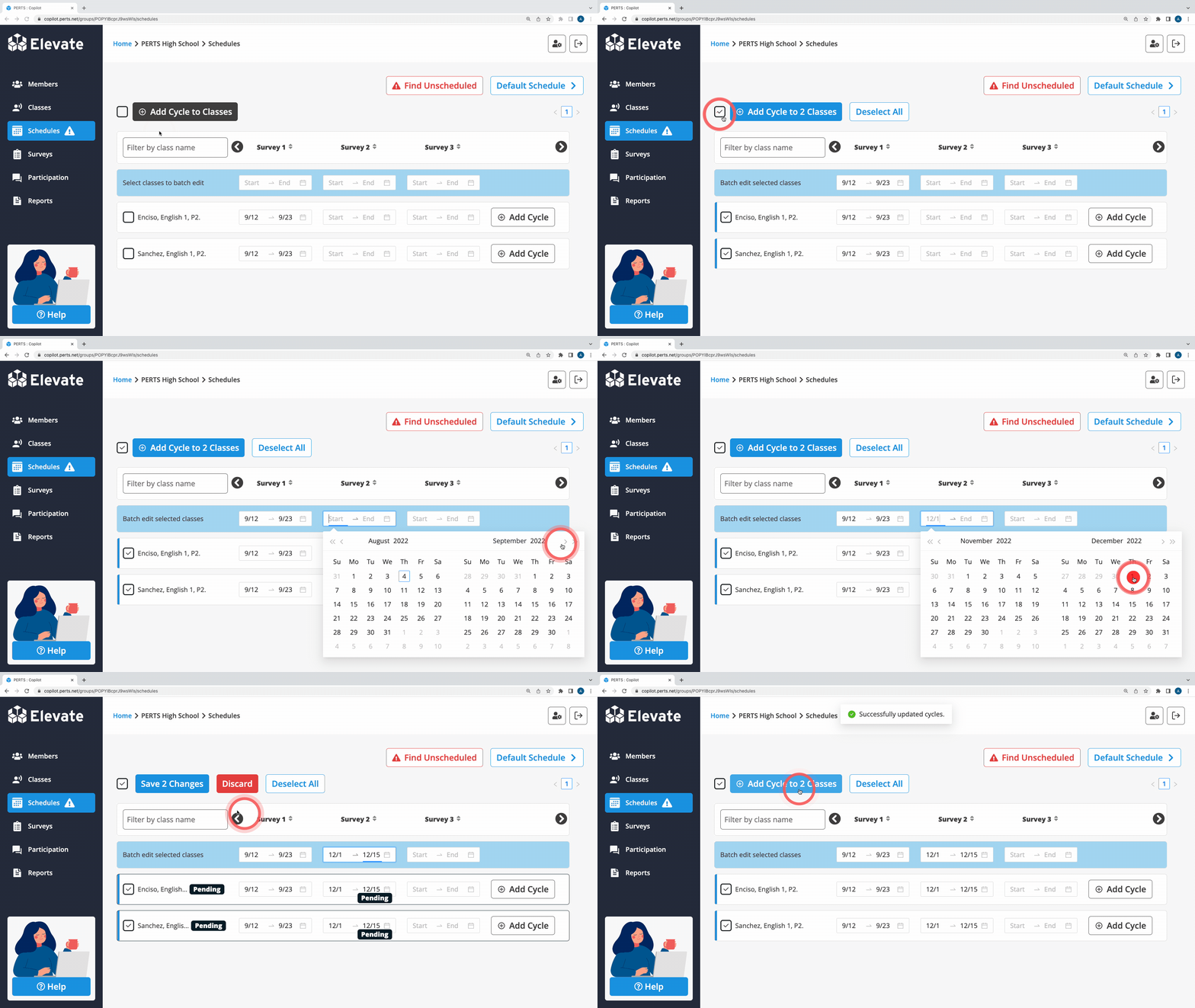
C. How do I set or adjust a survey schedule for multiple Classes/Groups?
- Sign in
- Click Schedules in the Community you would like to work with
- Click the box next to each Class/Group schedule you’d like to edit or select all by clicking the box above the list
- In the blue row, click the Start - End date field to select the dates the survey will be administered. You can also click the X next to the dates to delete them.
- Click Save # Changes
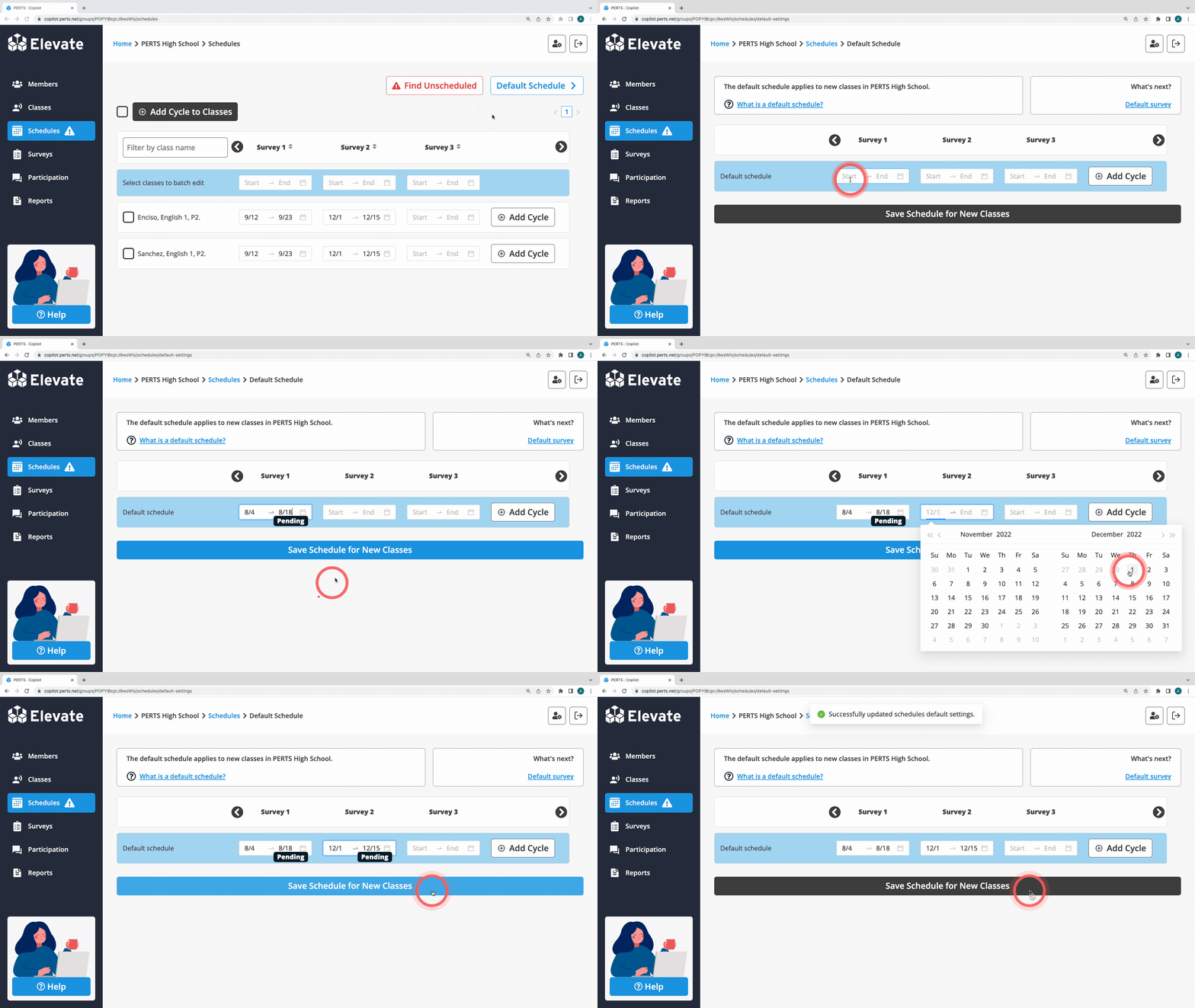
D. How do I set a Default survey schedule for new Classes/Groups in a Community?
- Sign in
- Click Schedules in the Community you would like to work with
- From the Schedules tab, click Default Schedule
- In the blue row, click the Start - End date field to select the dates the survey will be administered. You can also click the X next to the dates to delete them.
- Click Save Schedule for New Classes
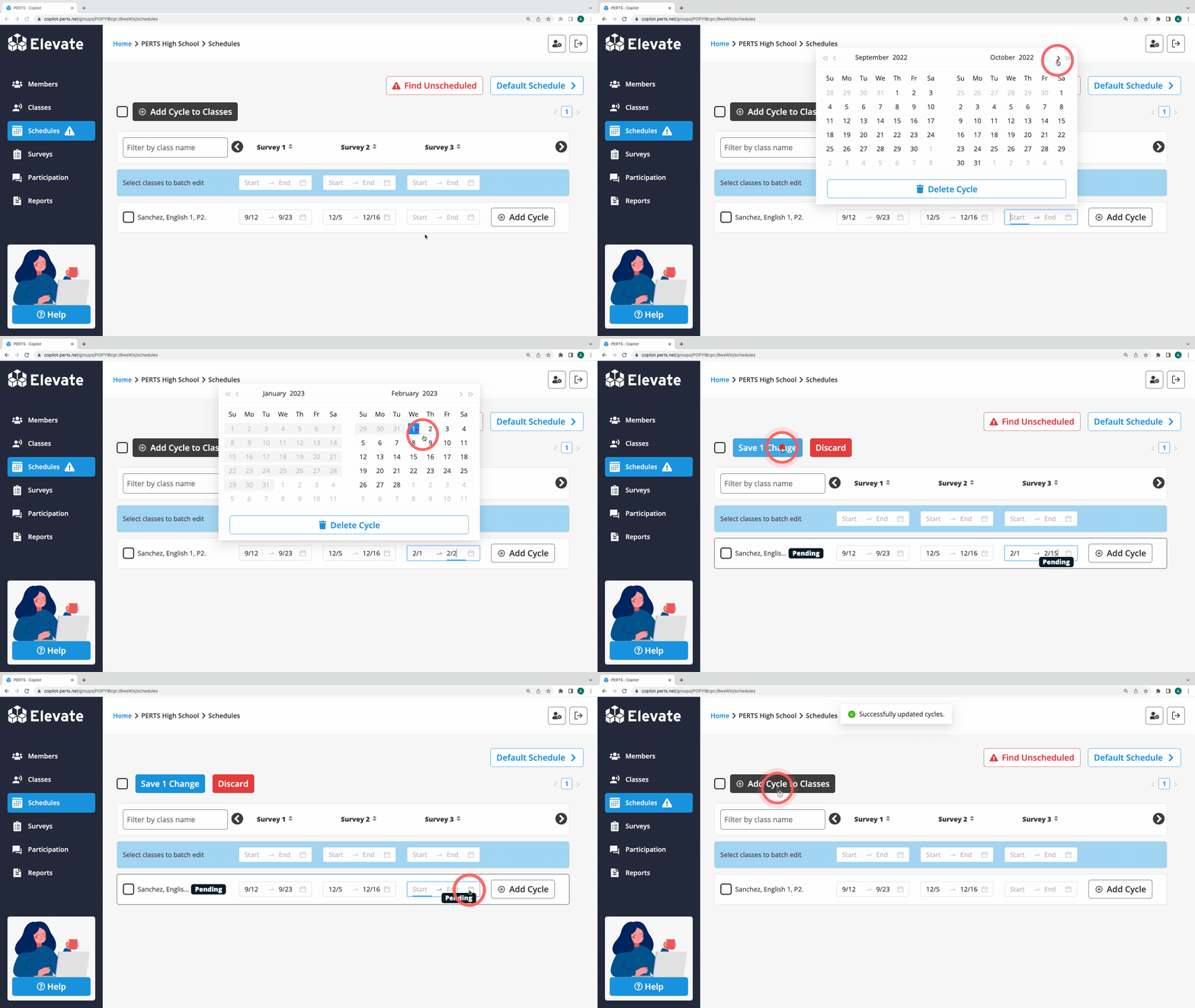
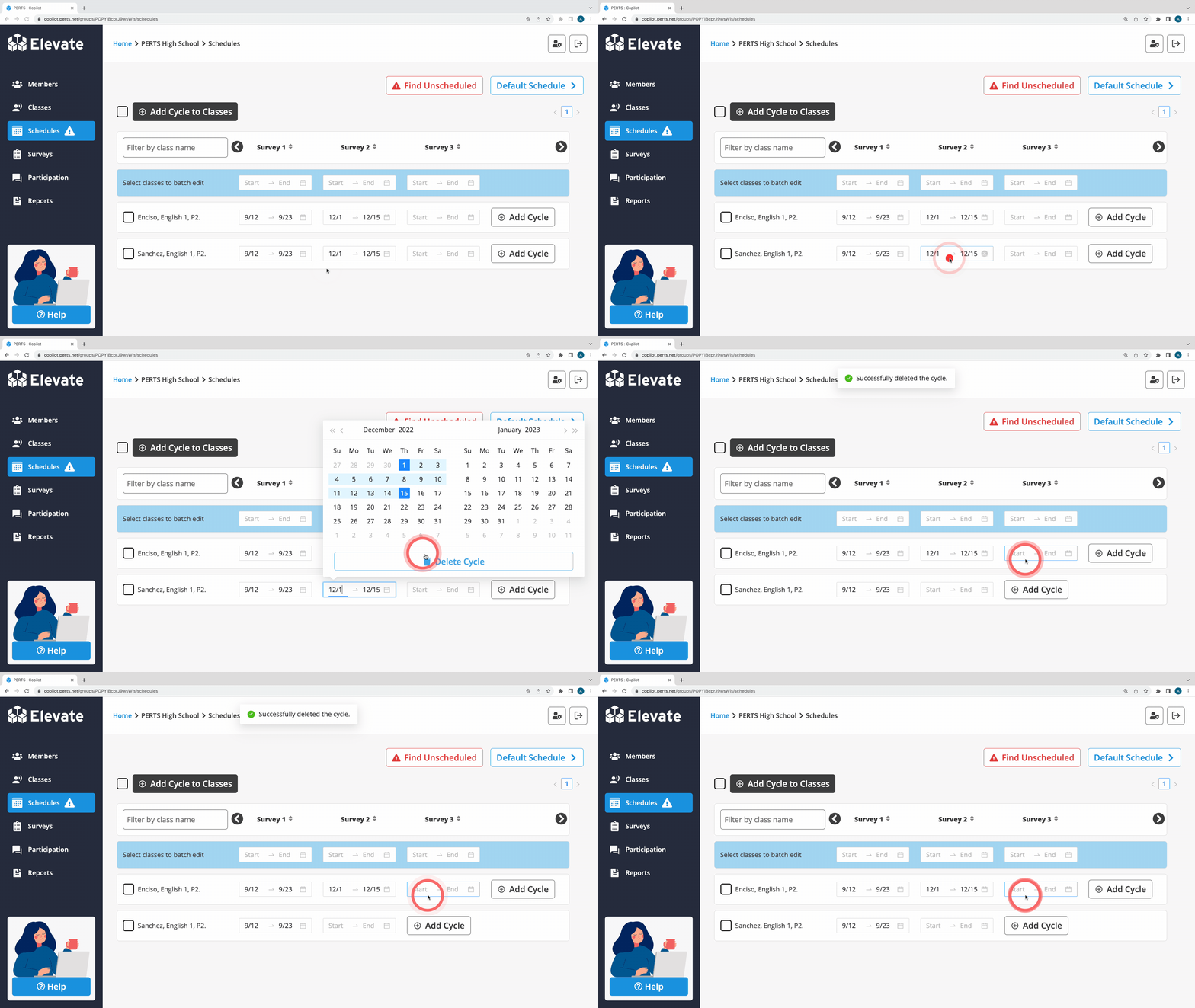
E. How do I delete a survey cycle for one Class/Group?
- Sign in
- Click Schedules in the Community you would like to work with
- Click the Start - End date field for the field you’d like to delete
- Click Delete Cycle below the calendar
Note: Only Survey Cycles 3+ can be deleted.
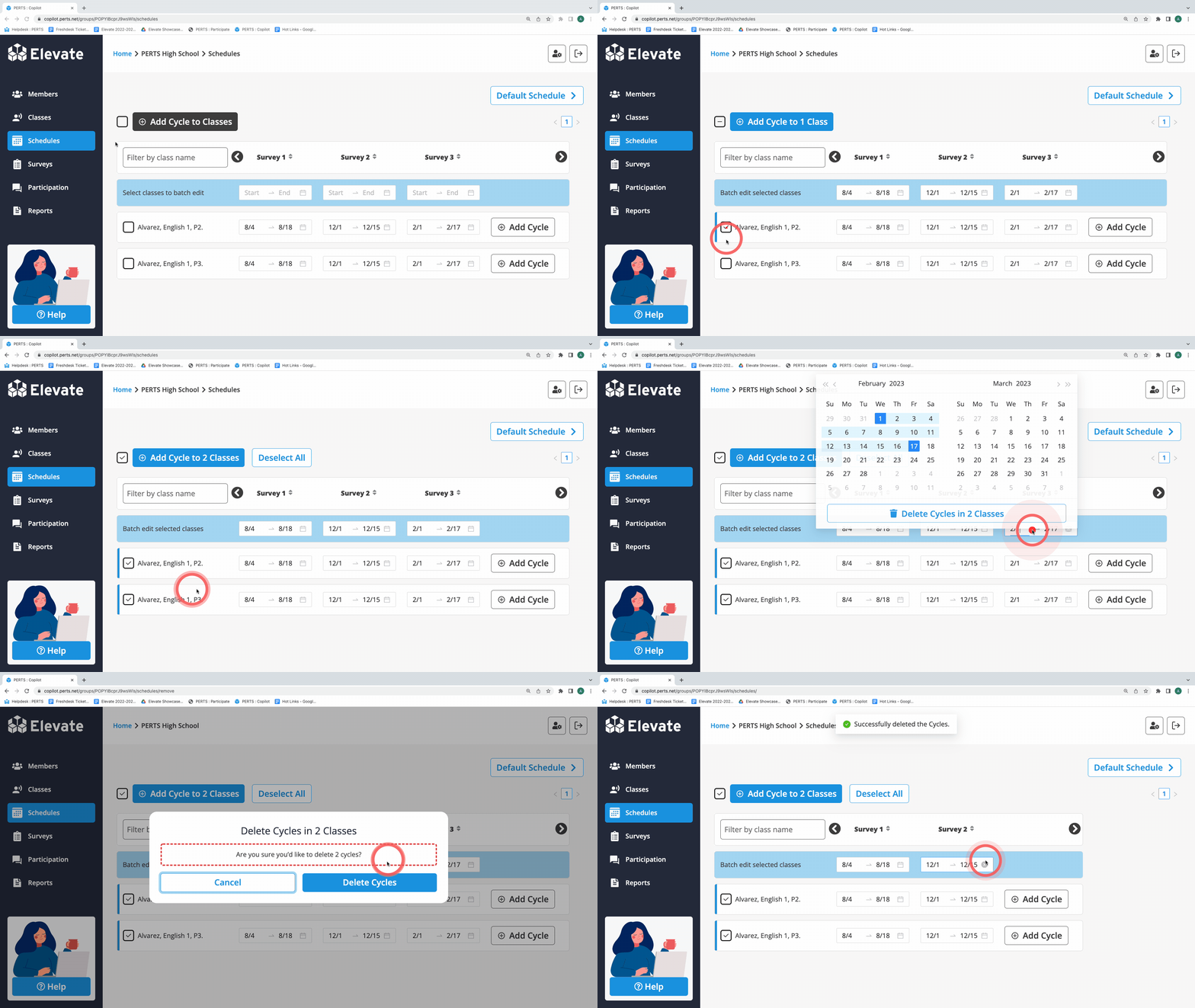
F. How do I delete a survey cycle for several Classes/Groups?
- Sign in
- Click Schedules in the Community you would like to work with
- Click the box next to each Class/Group schedule you’d like to edit or select all by clicking the box above the list
- In the blue row, click the Start - End date field for the survey cycle you’d like to delete
- Click Delete Cycles in # Classes below the calendar
- Confirm deletion by clicking Delete Cycles
Note: Only Survey Cycles 3+ can be deleted.
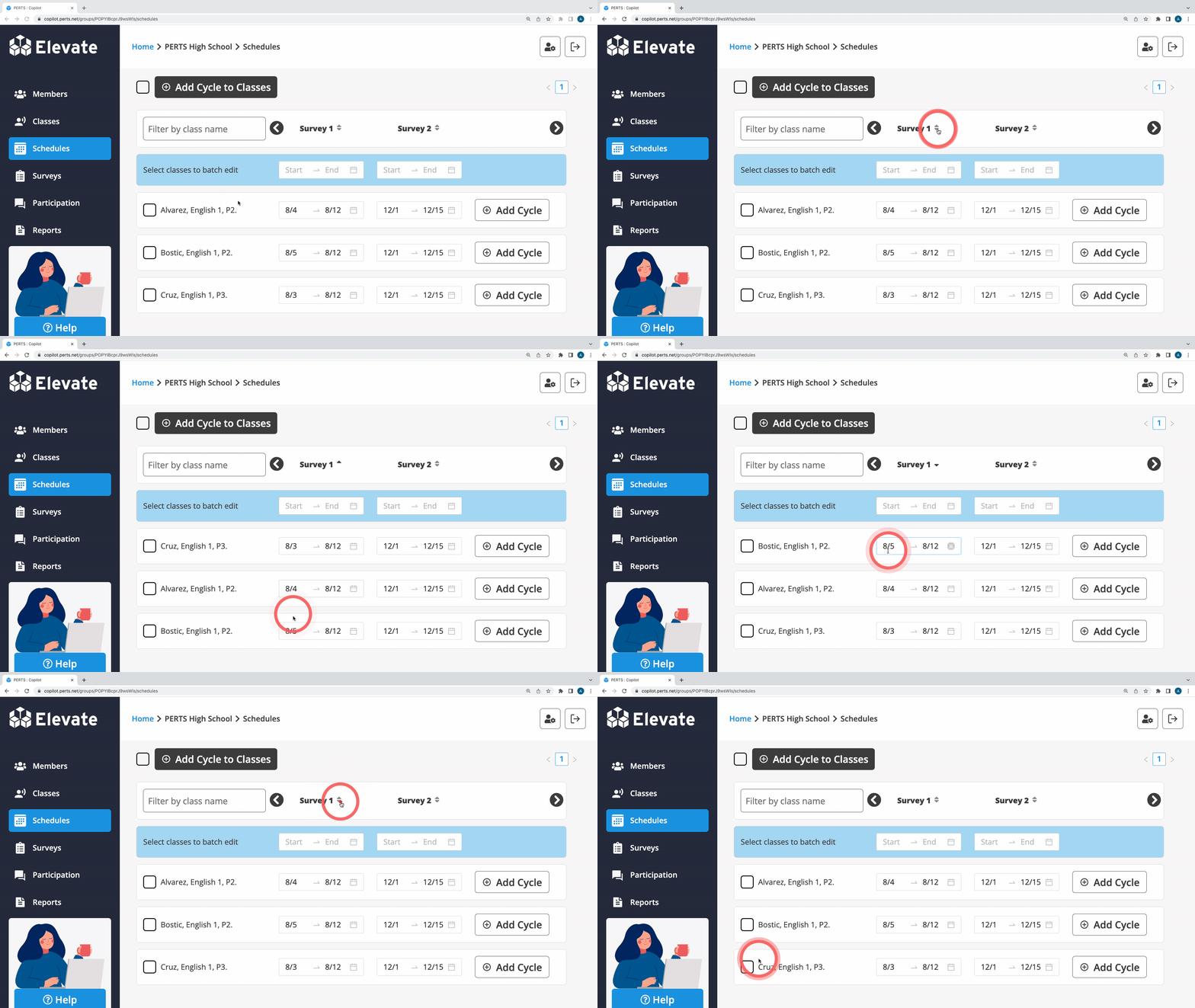
G. Can I sort my Classes/Groups by survey window date?
On occasion, Classes/Groups may have different dates for the same survey window. In order to see variations in schedules, like which Classes/Groups are surveying first or last, Classes/Groups can be sorted by the start date of the survey window.
Note: By default, Classes/Groups are listed in the schedule tab in alphabetical order by Class/Group name.
- Sign in
- Click Schedules in the Community you would like to work with
- Click the arrows at the top of a survey cycle column once to sort in ascending order (Classes/Groups with survey windows occurring earliest are listed at the top)
- Click the arrows at the top of a survey cycle column twice to sort in descending order (Classes/Groups with survey windows occurring last are listed at the top). Unscheduled Classes/Groups will appear at the top of the list.
- Click the arrows at the top of a survey cycle column three times to arrange Classes/Group back to alphabetical order
H. Why can’t I save my schedule?
Survey dates must be set in chronological order. You may be prevented from saving your schedule if it includes a conflict. For example, you cannot set Survey 2 dates to occur before Survey 1 dates. Once the conflict is corrected, the survey schedule can be saved.